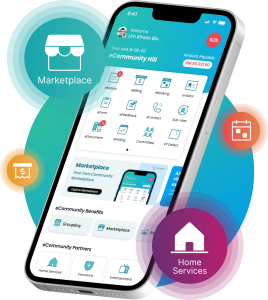
a. Download eCommunity App from:
Google Playstore and Apple App Store: http://onelink.to/6q8j5c
b. Select “FIRST TIME ACTIVATION” and “VERIFY MY EMAIL or MOBILE NO.”
c. Key in and verify your Unit No. and Email or Mobile No.
d. Key in the 6 digits OTP that received from your email or mobile no. (If verify by using email, OTP will send to your email. Whereas, if verify by using mobile no., OTP will send to your mobile no.)
e. You have successfully activated your account.
a. Please ensure your House or Unit No. is entered in the correct format.
b. Email address or mobile no. MUST match with the records that maintained by your management office.
c. You may contact your management office for assistance.
Please contact your management office for any changes of your details as proof of property ownership is required for verification.
a. Select “Forget your password” in the login page of your app.
b. Key in your username (email or mobile no.)
c. Key in the 6 digits OTP that received from your email or mobile no.
d. Key in your new password.
a. Select “Settings” at the bottom of your app home page.
b. Select “Change Password” under Option.
c. Key in your current password and new password.
No, you can’t. eNotice is a one-way communication channel from management to residents only.
No, you can’t. Notices are controlled by management. Only management has the authority to remove the notices if they thought that notices are not relevant anymore and it would disappear from resident’s account.
No, you can’t. Only management has the authority to post.
Yes. We are only providing the platform to ease the process for you to pay monthly fees. You are paying through the payment gateway that your committee sign up with.
Choose the facilities you’d like to book, then select a time and date, and then follow the on-screen instruction to confirm your booking.
Yes, you can view your upcoming bookings in the app. Go to the “Bookings History” section to see a list of your scheduled bookings.
Most bookings can be modified or canceled within a certain time frame before the booking date. Check the app for specific details on the cancellation policy for each service.
Refund policies vary depending on the management and the cancellation time frame. For information regarding refunds, you can check with your management.
The app’s eBooking feature enables users to easily book facilities in the residential area.
Choose the facilities you’d like to book, then select a time and date, and then follow the on-screen instruction to confirm your booking.
No, you can’t. You can only pay the exact amount stated in the app.
Yes, you will receive receipts and invoices in your app and email immediately.
Please check with your management to update the status.
eVisitor feature is allow residents to register your visitors or guests in advance prior to the actual visit day. A QR code will be generated instantly for you to share to your visitor or guest for quick verification and check in at guardhouse.
A QR code is used in eCommunity Visitor Management System to speed up the registration process in guardhouse. Each QR code is tied up to one registration. Visitors will need to show their QR code for scanning at guardhouse in order to perform check-in or check-out.
eCommunity guard app has in-app QR code scanner. Guard will use the tablet or smart phone that prepared by management office to perform the scan.
Guard is allowed to edit visitor’s information such as vehicle number, name, NRIC and mobile no.
Yes, you will receive app push notification while guard perform checked-in and checked-out actions.
No, you can’t. This emergency contacts are updated by management.
No, you can’t. Emergency contacts are managed by management.
eForm feature is allow the residents to submit application forms that need approval from management such as contractor application form, moving in and out application form and etc. Resident can monitor the status of submitted forms by using this feature.
Only management will be able to see the forms.
Yes, you can. A “pay” button will appear in the form after management approved. You may use payment gateway to make payment directly. A worker permit will be generated after payment made.
Yes, you can. You may view your permit by clicking “Print” button in your approved form. Then, select more button (>>) at your top right to share the permit to your contractors or workers.
Yes, approved contractors or workers information will display in guard portal daily.
They need to show this permit to allow guard to search this ticket number from guard portal and perform check in process.
eFeedback feature is allow the residents to lodge complaints, suggestions or reports. Resident can monitor the status anytime, anywhere.
Only management will be able to see the reports you’ve lodged.
Yes, you will receive an app push notification when management updated or commented the report.
No, the reports will not be shared to all residents. Only management can view and revert.
Yes, you can. You may reply by clicking the “Add Note” button in your report.
Only management can upload or update the documents.
Yes, you can. You may download or share the document by clicking more button (>>) at your top right of your document.
No, you can’t. Only management can create polls.
Click into the poll, give your response after reading the questions sent by management.
No, you can’t. You can only vote one time. Please cast your vote wisely.
Because the management have set the poll could only be seen by the owners.
Group Buy allows residents to purchase products at exclusive community prices. When enough residents join a deal, the deal is unlocked and orders are confirmed.
This FAQ is provided for your convenience and is a summary only. Full terms are set out in the eCommunity Group Buy Terms & Conditions, available within the app.
Credit Card
Debit Card
If your credit card payment cannot be successfully charged at the time of unlock (for example, due to an expired card or insufficient funds), eCommunity will contact you to resolve the issue within six (6) hours after notification. If payment is not successfully completed within this period, your order will be automatically cancelled, subject to the eCommunity Group Buy Terms & Conditions.
MOQ stands for “Minimum Order Quantity”. Each deal requires a minimum number of orders before it can proceed.
If the MOQ is achieved, the deal is successfully unlocked and your order is confirmed.
If the deal does not proceed:
You may cancel your participation at any time before the deal is successfully unlocked. Once the deal has been successfully unlocked, cancellations are no longer permitted, even if the campaign end date has not yet been reached.
Yes. You may participate in multiple active Group Buy deals at the same time. You may also join the same deal multiple times during the campaign period, subject to any quantity limits specified in the deal details. Each participation will be treated as a separate order and will appear separately in your order history.
Yes! Tap the Share button on the right corner of any Group Buy deal to share it via WhatsApp or other supported apps. Sharing the deal helps more residents join the campaign and increases the chance of reaching the MOQ.
Please note: Group Buy deals are exclusive to each residential community. If the recipient belongs to a different residential community, they will not be able to view or join the shared deal.
Orders must be collected at the designated collection point on the specified date and time displayed in the deal details and order information within the eCommunity app. Residents may collect their order personally or authorise a representative to collect on their behalf, provided the required Order ID is presented.
Please inspect your order before leaving the collection point whenever possible, then tap “Order Received” after successful collection.
Please collect your order at the scheduled collection time. If you do not collect your order, it will be moved to your designated parcel rack or collection holding area (where available) and held for up to twenty-four (24) hours from the scheduled collection time. After that, the items may be returned to the Merchant or disposed of, depending on the product. For fresh or perishable items, product quality cannot be guaranteed once the scheduled collection time has passed, even if the order is still within the holding period. No refunds will be provided for orders that are not collected within the 24 hours holding period, subject to the eCommunity Group Buy Terms & Conditions.
If the scheduled collection is delayed due to operational reasons, eCommunity will notify affected residents through the app and provide updated collection details where applicable. Please refer to the latest updates in the eCommunity app before proceeding to the collection point.
Once you have marked your order as “Order Received”, the “Return / Refund” option will be available in your order details. If there is an issue with your order, submit your refund request within forty-eight (48) hours from the scheduled collection time stated for the campaign, together with supporting evidence (such as photos where applicable).
Refund requests submitted after the 48-hour period will generally not be accepted, unless otherwise required by applicable law or approved by eCommunity under exceptional circumstances.
The “Return / Refund” option may be unavailable for one of the following reasons:
If you believe you are unable to submit a refund request in error, please contact eCommunity through the “Chat with Us” feature under your Group Buy profile.
eCommunity will conduct an initial assessment within 1–3 business days. If approved, refunds are typically processed within 7–14 business days, subject to payment gateway and banking processing timelines. Additional information may be requested where necessary.
Refund requests may be considered if:
Please note: All refund requests are subject to review and approval by eCommunity.
Products sold through Group Buy are supplied by independent Merchants. The Merchant is responsible for product quality, safety, fulfilment, and regulatory compliance. eCommunity acts as the platform operator and operational coordinator.
For assistance regarding Group Buy, please contact us through the “Chat with Us” feature in the eCommunity app or email us at [email protected]
All eCommunity users can be merchants on Marketplace. Simply set-up your merchant account through the app and list the product and/or services you provide—it’s that simple! Now you’re free to establish your online presence on the eCommunity App and connect with your fellow neighbours.
You are free to sell anything, with no limitations on the range of products. As the merchant, it is your responsibility to ensure the sale is legal, that the products are accurately described, packaged, shipped, warranted, and fulfilled in respect of all sale and after sale obligations required by the law or trade.
You are able to provide any service and even create a package of services under a variety of price ranges. As the merchant however, it is your responsibility to ensure the service provided is legal and in respect of all sale and after sale obligations required by the law or trade.
Yes, you can set the price of your choice for products/services as long as it is reasonable. However, please take note of the commission and payment fee charged, and feel free to consult the Terms of Trade for further details.
You will be able to see your pending claimable amount 7 days after the completion of your order under the “Payment Report” section. eCommunity will release the payment to your registered bank account within the next 10 working days after order completion.
For products, please ensure you have adequate stock availability as there will be a cancellation fee to be incurred if the merchant cancels the order once it has been placed by the buyer.
For services, you may liaise with the buyer through our in-app chat to reschedule/cancel the service request.
We here at eCommunity act as only the e-commerce platform, however you can contact [email protected], if you need any further assistance.
Yes, as this is a virtual community marketplace where trading happens within your own Marketplace, we encourage merchants to arrange their own deliveries or liaise with the buyer in arranging self-pickups.
We currently provide payments through Credit Card, FPX and E-Wallet.
When the customer requests for a return/refund, merchants are required to respond within 7 days of receiving the request. In issues relating to refunds, communication shall be solely between the buyer and the merchant. However if no response is sent by the merchant, eCommunity will accept and process the request, issuing a full refund to the customer.
If a merchant rejects the customer’s request for a return/refund, they may file a report to eCommunity and we will act as a mediator to assist all parties in reaching a final decision.
For Products: If the merchant receives an order from a customer, the transaction was successful. You are now able to accept and fulfil the order as you wish.
For Services: The transaction is successful when the order status shows “Completed”.
For Products: Browse through and select your product, and the amount you’d like. You can then click “Buy Now” or “Add to Cart” if you want to keep browsing. Once you’re ready to pay, simply go to your cart, choose your shipping method, checkout, and proceed to payment.
For Services: Browse through and select your preferred service, and the package you’d like. Next, choose the date and time you would like and upload any attachment if necessary. Please add remarks to help merchants better understand the service you need. Simply click submit and wait for your order to be accepted. Once the service is done by the merchant, the final payment amount will be updated for you to make the payment within the app.
Marketplace only acts as an e-commerce platform, if an invoice is needed, kindly liaise with the merchant directly for an official invoice.
When the customer requests for a return/refund, merchants are required to respond within 7 days of receiving the request. In issues relating to refunds, communication shall be solely between the buyer and the merchant. However if no response is sent by the merchant, eCommunity will accept and process the request, issuing a full refund to the customer.
If a merchant rejects your request for a return/refund, you may file a report to eCommunity and we will act as a mediator to assist all parties in reaching a final decision.
You are free to cancel your order anytime before the merchant accepts the order for a product or fulfils the request for a service.
You can request return/refund of the product/service if unsatisfied.
If you have not received your product/service, please contact us at [email protected]
On matters relating to the delivery/completion time of an order/service, kindly liaise with the merchant directly.
You earn reward points with every transaction you make in your Marketplace, as well as any reviews you make after receiving the product/service, all of which are redeemable in your future purchases.
Once you have received your order/product you will be able to leave a rating and review.
The merchants reviews and ratings are visible on the product/service page.
You can click the chat button on the merchant’s product/service information page to start a conversation with them
Reports concerning rejection of return/refund requests can be done through the app. For other matters, do not hesitate to email [email protected]
Total 10 sub-users, 5 Tenants and 5 Family Members.
No, only owner has the authority to create sub-users.
Yes, it is mandatory. It is because NRIC/Passport No. is the key to link eCommunity accounts. For example, you are the family member of Unit 1-1 and Unit 3-1. You are allow to switch between this 2 units by using ONE (1) username and password if both owners input same NRIC/Passport No. when perform sub-user creation.
Yes, it is mandatory. It is because owner does not know this users will activate the account by using contact number or email address.
Tenants or family members will receive an email from eCommunity regarding the accounts have been created successfully. The procedure of activate sub-users account are exactly the same as owner. (Please refer to Account Activation No. 1)
Yes, you can. As owner, you can deactivate their accounts by pressing “Deactive” button in tenant or family member profiles.
The committees are the Management Corporation Strata Title (MCST) chosen by your community in the AGM.
Yes, you can.
No, you can’t. You can only see their name and designation.
Users who have more than 1 unit can switch units.
It is because your NRIC/Passport No. in the system are different. Please inform your management to update your NRIC/Passport No.
You may use switch unit feature if your other communities are also using eCommunity system.
*Note: Your NRIC/Passport No. MUST be the same in all communities.
e-Invoice is the electronic generation, transmission, and receipt of invoices in a structured digital format, enabling automated processing and compliance with tax regulations.
Currently, there is no e-invoice requirement for residential property owners renting out properties on a non-business basis. Standard receipts for rent payments suffice for documentation purposes.
e-Invoice becomes mandatory for property owners when rental activities are conducted as a business operation or when tenants use the premises for commercial purposes.
To register as a taxpayer, visit the Inland Revenue Board of Malaysia (LHDN) official website to download and complete the necessary tax registration forms. Submit the completed forms and required documents to the nearest LHDN office.
Adopting e-Invoicing streamlines invoicing processes, reduces manual errors, enhances tax compliance, and improves operational efficiency.
Property owners who identify errors or discrepancies in an e-Invoice issued by their Joint Management Body (JMB) or Management Corporation (MC) have the right to request a rejection of the e-Invoice. This process is facilitated through the MyInvois Portal.
Enhance your community & property management experience with eCommunity by requesting for a FREE demo and discover what eCommunity can do for you.
We value your feedback & ideas! If you were referred to us, kindly furnish us with the contact details of said individual, along with your thoughts. Thank you.